How to Charge a Galaxy Watch Without a Charger
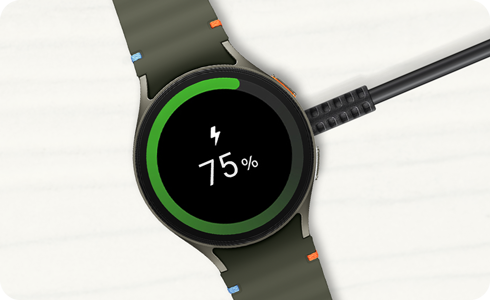
How to Charge a Samsung Galaxy Watch: With or Without a Charger
If your Samsung Galaxy Watch isn't charging properly, it could be due to incorrect alignment, incompatible accessories, or insufficient battery on the source device. Follow these steps to ensure efficient and safe charging for your Galaxy Watch.
1. How to Charge Your Samsung Galaxy Watch Using a Wireless Charger
Charging your Galaxy Watch with a wireless charger is simple and efficient. Here's how:
- Place the Galaxy Watch on the wireless charger, aligning the center of the watch's backside with the center of the charger.
- Ensure the watch is placed flat and stable on the charger for optimal contact.
- Wait for the charging indicator to appear on the watch screen, confirming that charging has started.
- Use only Samsung-approved chargers, cables, and docks to prevent potential damage to your device.
2. Can I Charge My Galaxy Watch Using a Wireless Charging Pad?
Yes, your Galaxy Watch can be charged using a compatible wireless charging pad or device with similar functionality. Follow these steps:
- Place the Galaxy Watch on the wireless charging pad, ensuring proper alignment.
- Check the watch screen for the charging indicator to confirm that charging has begun.
- Not all wireless charging pads are compatible with the Galaxy Watch. Verify compatibility before use.
3. How to Charge Your Galaxy Watch Using a Galaxy Phone's Wireless Power Sharing
You can charge your Galaxy Watch using the Wireless Power Sharing feature on a compatible Galaxy phone. Here's how:
- Turn on Wireless Power Sharing on your Galaxy phone: Go to Settings > Battery and Device Care > Battery > Wireless Power Sharing.
- Place the Galaxy Watch on the back of the phone, ensuring proper alignment.
- Wait for the phone to vibrate once and the watch screen to indicate charging has started.
- Disconnect the devices and disable Wireless Power Sharing on the phone once the watch has sufficient charge.
- Ensure your phone has at least 30% battery before using Wireless Power Sharing.
4. Additional Things to Check
- Remove any cases or accessories from the devices if they interfere with charging.
- Add the Wireless Power Sharing icon to the Quick Panel for easier access: Tap the Pencil icon > Tap Full Edit > Select Wireless Power Sharing > Tap Done.
- Some Galaxy Watch models may not support Wireless Power Sharing. Check your device's specifications for compatibility.
5. Supported Samsung Galaxy Devices
The Wireless Power Sharing feature is supported on select Galaxy phones, including the Galaxy S24, Galaxy S25, Galaxy Z Fold, and Galaxy Z Flip series. Compatibility may vary depending on the specific model and software version.
6. Why Does the Galaxy Watch Battery Drain Quickly?
The battery life of your Galaxy Watch depends on factors such as Wi-Fi connectivity, app usage, and the frequency of calls and messages. Activating Power Saving Mode can help extend battery life by limiting certain functions:
- Turn off: Wake-up gesture, Always On Display, and Wi-Fi.
- Limit: CPU performance, background network usage, location, and syncing.
- Decrease: Brightness and screen timeout.
Related Samsung Support Topics
Thank you for your feedback!
Please answer all questions.