Use Sketch to Image with S Pen AI Suggestions
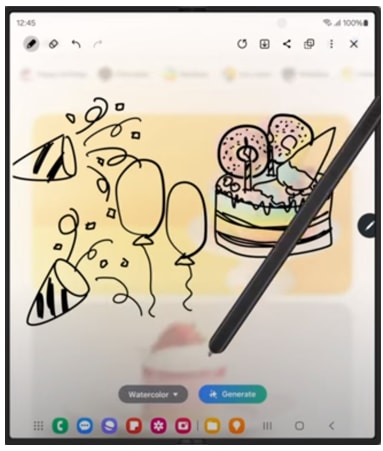
How to Use the Sketch to Image Feature with S Pen on Samsung Galaxy Devices
The Sketch to Image feature transforms your hand-drawn sketches into AI-generated artwork using the S Pen. Available across Smart Select, Photo Editor, Samsung Notes, and Edge Panels, this feature enhances creativity with customizable styles and seamless integration.
1. How to Access the Sketch to Image Feature
The Sketch to Image feature is accessible through multiple apps on your Samsung Galaxy device. Follow these steps to get started:
- Via Air Command: Hover the S Pen over the screen, select 'Air Command,' and choose 'Sketch to Image.' Draw your sketch, select a style, and tap 'Generate.'
- Via Smart Select: Open an image, go to Air Command > Smart Select. Draw an area, tap 'Sketch to Image,' select a style, and tap 'Generate.'
- Via Samsung Notes: Draw in Pen mode or open an existing note. Tap 'Note Assist' > 'Sketch to Image,' choose a style, and tap 'Generate.'
- Via Photo Editor: Select an image, tap 'Photo Assist' > 'Sketch to Image.' Adjust as needed and tap 'Generate' to complete the image.
2. Supported Samsung Galaxy Devices
The Sketch to Image feature is available on select Samsung Galaxy devices equipped with the S Pen, including the Galaxy S24 series, Galaxy Z Fold series, Galaxy Z Flip series, and Galaxy Tab S series.
3. Why the Sketch to Image Feature May Not Work
- Outdated Software: Ensure your device is running the latest software version for optimal functionality.
- S Pen Compatibility: Verify that your S Pen is compatible with your device and properly connected.
- App Restrictions: Check if the app you're using supports the Sketch to Image feature.
4. Additional Things to Check
If the Sketch to Image feature isn't working as expected, try the following:
- Restart your device to resolve temporary glitches.
- Update the apps you're using to ensure compatibility with the latest features.
- Clear the cache of the app you're using to improve performance.
Related Samsung Support Topics
Thank you for your feedback!
Please answer all questions.