How to Change the Audio Settings on Your Samsung TV
How to Change Audio Settings on Samsung TV
To change audio settings on your Samsung TV, you can easily switch between sound modes like Standard, Optimized, and Amplify, or access advanced Expert Settings for fine-tuning. Follow these steps to customize your TV's audio experience based on your content or listening environment.
1. How to Change Sound Modes on Samsung TV
Samsung TVs offer preset sound modes to enhance your viewing experience. Here's how to switch between them:
- Press the Home button on your remote control.
- Navigate to Quick Settings (available on newer models) or Settings (on all models).
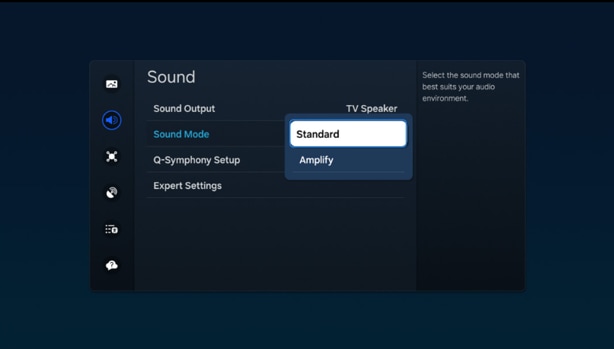
- Select Sound Mode and choose from the available options:
- Standard: Balanced sound with no emphasis on specific tones.
- Optimized: Automatically adjusts sound based on content type.
- Amplify: Enhances mid- and high-range frequencies, improving voice clarity.
2. How to Access Expert Settings for Advanced Audio Customization
For more precise control over your TV's audio, you can adjust Expert Settings:
- Press the Home button on your remote.
- Go to Settings, then select Sound.
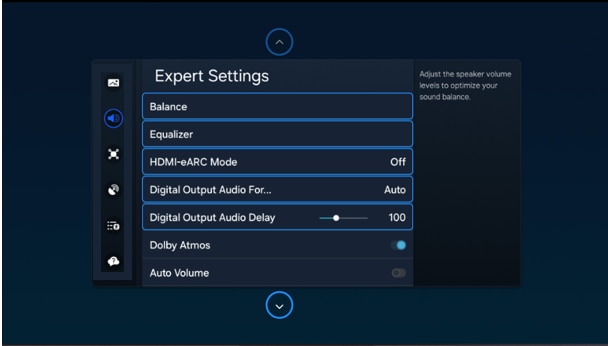
- Choose Expert Settings to access advanced options:
- Balance: Adjusts sound distribution between left and right speakers.
- Equalizer: Fine-tunes bass and treble levels.
- HDMI Input Audio Format: Selects audio format for HDMI-connected devices.
- Digital Output Audio Format: Configures audio output for external speakers (Dolby Digital+ available via HDMI ARC).
- Dolby Atmos: Enables spatial audio if your speakers support it.
- Auto Volume: Automatically adjusts volume levels.
- Sound Feedback: Provides audio cues while navigating settings.
- Reset Sound: Restores default audio settings.
Note: Some settings may be unavailable if external speakers are selected as the primary output.
3. How to Connect External Speakers or Soundbars
To connect wireless speakers, Bluetooth devices, or soundbars:
- Press the Home button on your remote.
- Navigate to Settings, then select Sound.
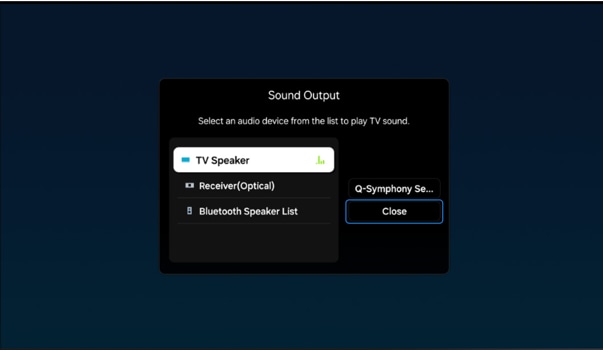
- Choose Sound Output and select your preferred device.
Note: When using external speakers, the TV's volume controls may be disabled.
4. Supported Samsung TV Models
These audio settings are compatible with most Samsung TVs, including:
Galaxy Crystal UHD, QLED, Neo QLED, Micro LED, and Lifestyle TV series.
5. Why Adjusting Audio Settings Matters
Customizing your TV's audio settings ensures the best sound quality for different types of content, such as movies, music, or sports. It also helps address common issues like muffled dialogue or imbalanced sound.
Related Samsung Support Topics
Thank you for your feedback!
Please answer all questions.