How to factory reset the Samsung Jet Bot Combo

If your Samsung Jet Bot Combo is not working properly, you can try performing a factory reset. This will return the Jet Bot Combo to its factory defaults and remove any issues that may be occurring.
Soft Resetting the Jet Bot Combo
Follow the instructions below to reset your Samsung Jet Bot Combo.

 and Recharging
  buttons will blink white, and the factory reset process will begin.
Resetting to Factory Default
Follow these steps to reset the Jet Bot Combo to it's factory settings.
and Recharging buttons simultaneously for 7 seconds.The buttons will blink in white and the factory default reset process will begin.
When the setting is complete, the Jet Bot Combo restarts automatically.
Step One
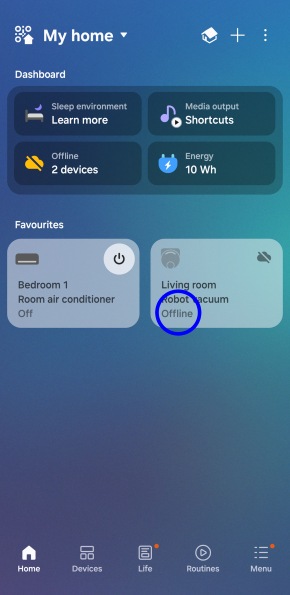
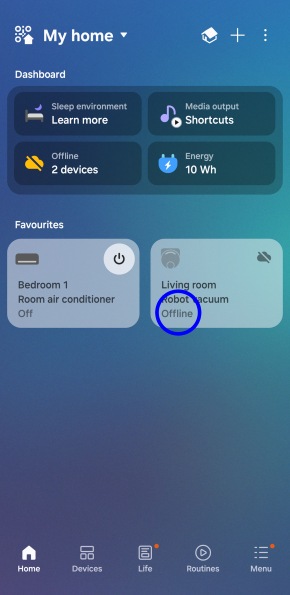
Once the reset is complete, Jet Bot Combo will appear Offline in the SmartThings app.


Step Two
Select the Robot vacuum from the home screen on your SmartThings app.


Step Three
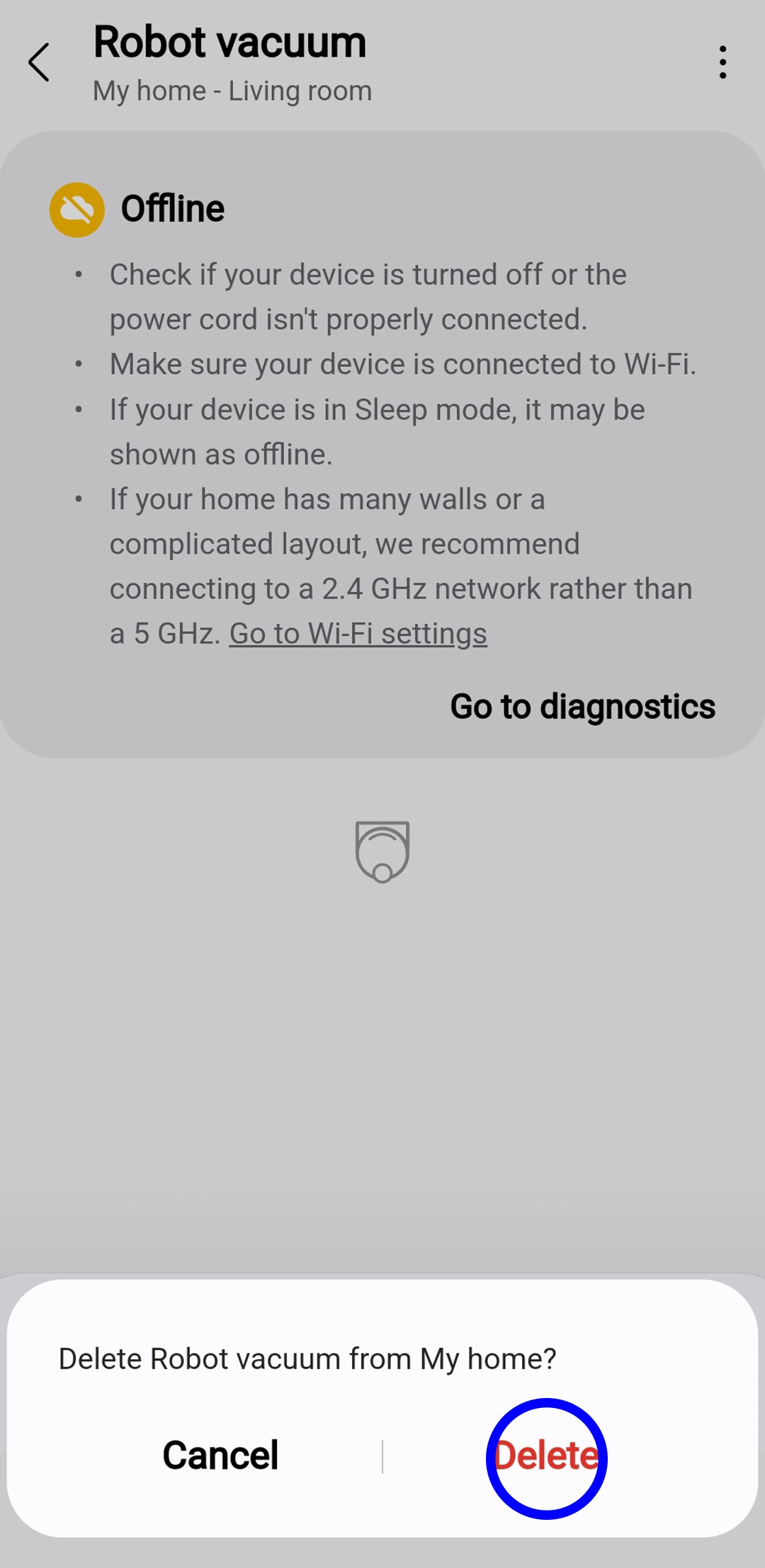
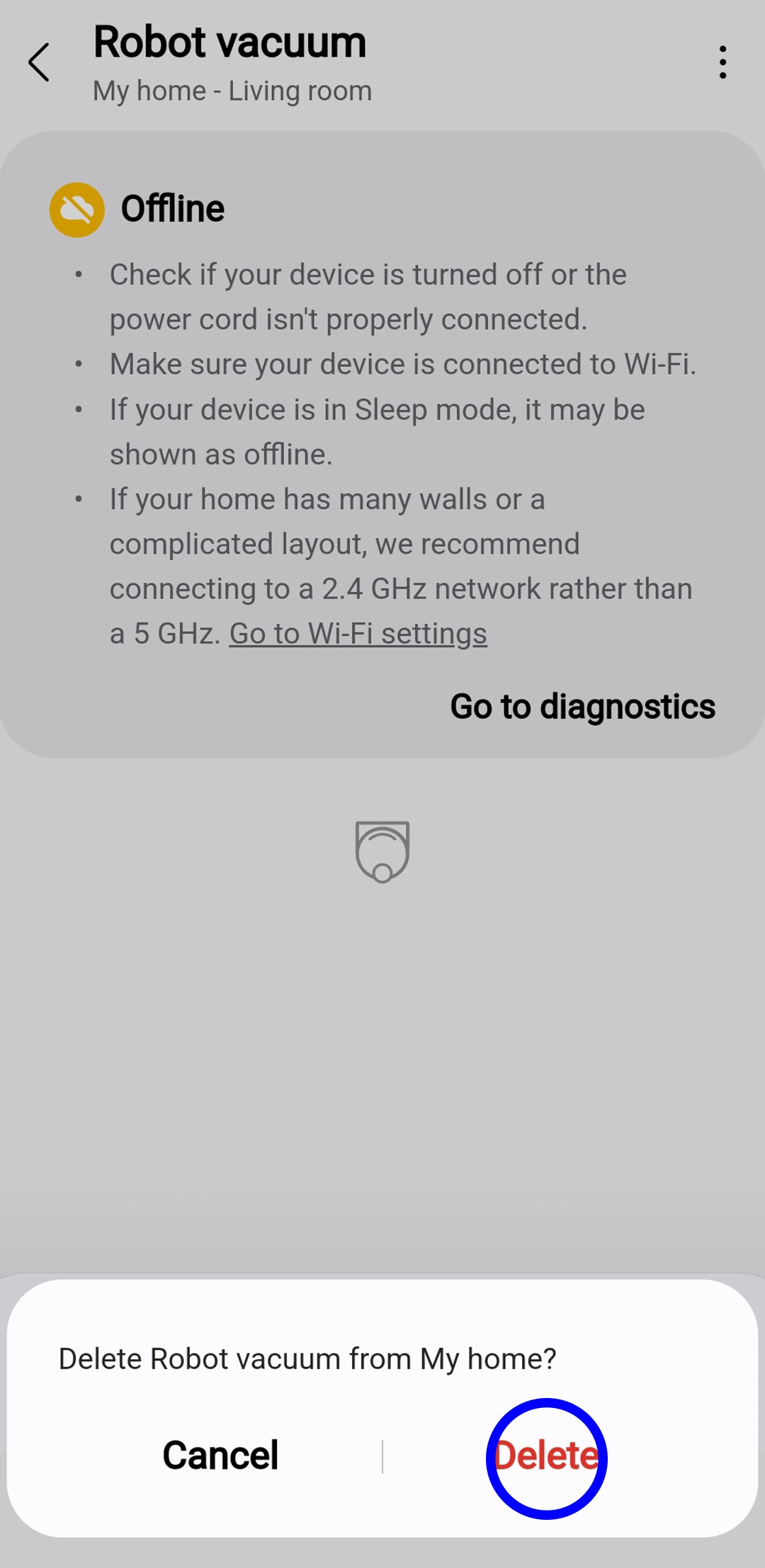
Select the 3 dots from the top right corner and select Remove device from the drop-down menu.
For further assistance, please contact our Chat Support team. To find your Samsung product's User Manual, head to Manuals & Downloads.
Thank you for your feedback!
Please answer all questions.
Contact Info
Contact us
WhatsApp
![]()
![]()

