How To Use Fridge Manager On Your Family Hub™
 Please Note: The information on this page is for Australian products only. Models, sequences error codes or settings will vary depending on location and/or where the product had been purchased. To be redirected to your local support page please click here.
With Fridge Manager, you can easily manage and view your fridge settings, such as the temperature, special functions, status of your water filter, and more.
Find out how to use and understand the main home screen of Fridge Manager on this page.
If you have another fridge model, please consult your User Manual for control panel instructions.

Note: UI and availability of features will vary depending on model, and is subject to change.
To access Fridge Manager on your Family Hub™:
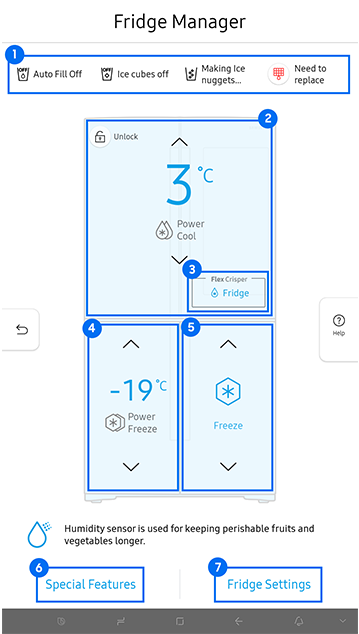
Fridge Manager Functions
|
Function |
Features |
|---|---|
|
01 - Display of Current Settings |
|
|
02 - Fridge Temperature Settings |
|
|
03 - Flex Crisper |
|
|
04 - Freezer Temperature Settings |
|
|
05 - Cool Select+ / FlexZone Settings |
|
|
06 - Special Features |
|
|
07 - Fridge Settings |
|
01 On the Fridge Manager main screen, tap on the top box.
02 Adjust the temperature of your fridge by tapping on the preferred °C.
03 Once finished, tap 'Save'.

01 On the Fridge Manager main screen, tap on 'Flex Crisper'.
02 Select between 'Meat & Fish' or 'Fridge' mode depending on what food you have stored in your Crisp drawer. You may have more or different options depending on your model. Please consult your User Manual for more information on the other modes.
03 Once finished, tap 'Save'.

Note: Flex Crisper available on compatible models only. Check your User Manual for availability details.
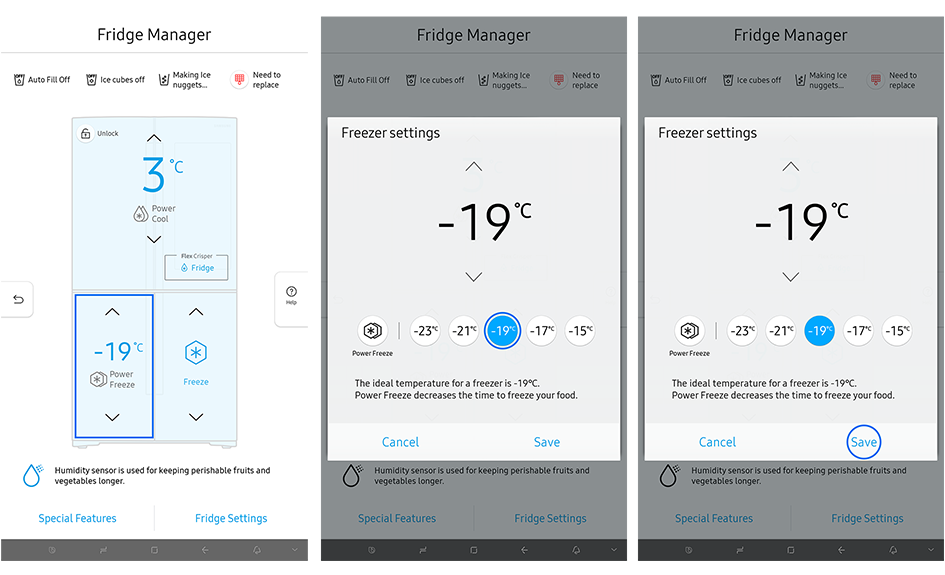
01 On the Fridge Manager main screen, tap on the bottom left box.
02 Adjust the temperature of your freezer by tapping on the preferred °C.
03 Once finished, tap 'Save'.
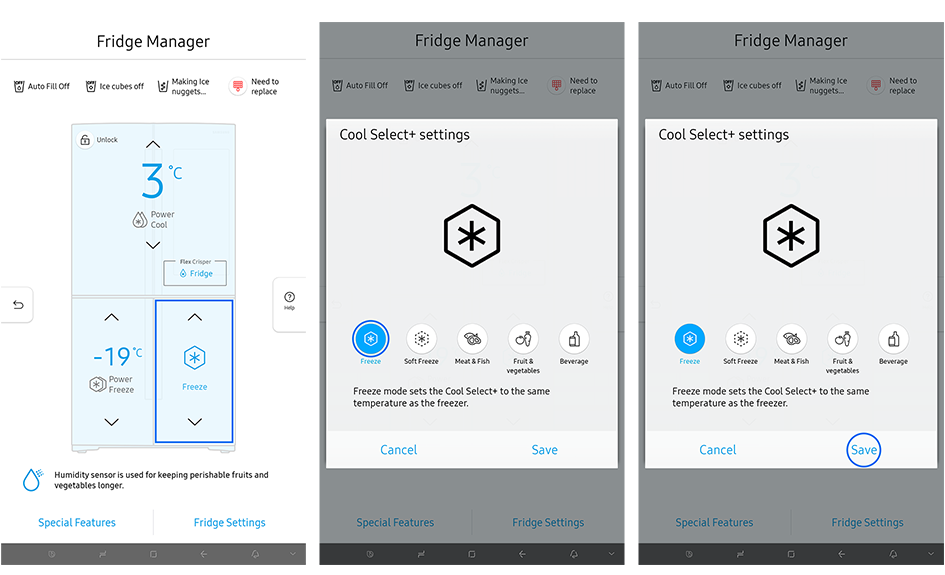
01 On the Fridge Manager main screen, tap on the bottom right box.
02 Select desired mode. For more information on cooling modes, consult your User Manual.
03 Once finished, tap 'Save'.
Note: Cool Select+ and Flex Zone available on compatible models only. Check your User Manual for availability details.
01 On the Fridge Manager main screen, tap on 'Fridge Settings' on the bottom right.
02 Tap on the sliders to adjust settings.
03 Turn on or off settings including ice making, the door alarm, and auto water fill.
04 You can also change the temperature units (°F or °C) here.

Fridge Settings Functions
|
Function |
Features |
|---|---|
|
Ice Cubes Maker |
*If the ice bucket is full of ice, the refrigerator will not start making ice when you drag the button to On. Instead, it will display the Ice Making Off indicator on the main screen. |
|
Ice Nuggets Maker |
|
|
Auto Water Fill |
|
|
Door Alarm |
|
|
Temp. Unit |
|
|
Water Filter |
|
|
Self-Check |
|
For further assistance, please contact our Chat Support . To find your Samsung product's User Manual, head to Manuals & Downloads.

Thank you for your feedback!
Please answer all questions.
Contact Info
Contact us
WhatsApp
![]()
![]()

