How To Use The BESPOKE Jet Bot AI+
 Please Note: The information on this page is for Australian products only. Models, sequences, error codes or settings will vary depending on location and/or where the product had been purchased. To be redirected to your local support page please click here.
Using Jet AI Object Recognition technology, the Samsung BESPOKE Jet Bot AI+ Robot Vacuum is designed to identify objects and furniture like washing machines, tvs, beds, etc - to map locations. Object recognition may be affected by an object’s shape or the environmental conditions.
The various features of the Bespoke Jet Bot AI+ allow for efficient and effective cleaning no matter your space or needs.
Keep reading below to discover how to use your Samsung BESPOKE Jet Bot AI+.
Note: Some features require a connection to the SmartThings App. For information on how to set up your Jet Bot to SmartThings, click here.
The SmartThings App is available on Android and iOS devices. A Wi-Fi connection and a Samsung account are required. Data fees may apply.
Using the Jet Bot
Before using the Jet Bot, press the power switch at the side of the Jet Bot to turn the Jet Bot on.
*For the normal use of the Jet Bot’s functions, aSmartThings connection is required.
Basic use
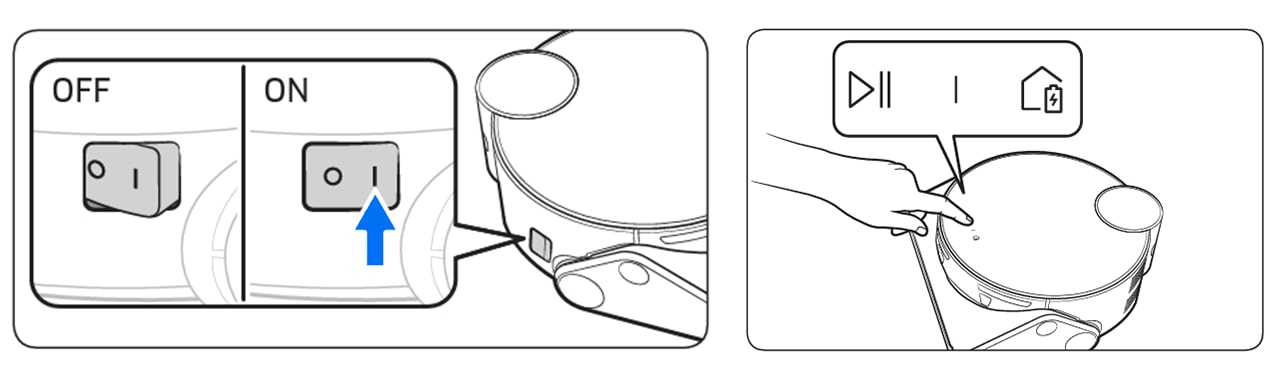
Power on/off
Press the power switch at the side of the Jet Bot to turn the Jet Bot on.
During booting, the Jet Bot’s Status Indicator turns on with a melody which stops when the booting is complete.
Starting cleaning
Press the  on the Jet Bot to start cleaning in Auto Clean.
Stopping cleaning
Press the on the Jet Bot to stop operation while cleaning.
When pressing the  , the Jet Bot returns to the Clean Station™ and starts charging.
*If the Jet Bot does not operate for 20 minutes after it stops operation, it automatically returns to the Clean Station™ to recharge.
Sleep mode
When the Jet Bot is not in operation, press and hold the to set the Sleep Mode.
In the Sleep Mode, press the to cancel.
Cleaning Functions
|
Function |
Operation |
|---|---|
|
Cleaning Methods |
Room Clean:You can select a room you want to clean. Around Furniture Clean: You can select the areas around furniture or an electronic appliance you want to clean. Spot Clean: You can set a specific area to clean. |
|
Cleaning Mode |
*You can set the Cleaning Mode only when the Jet Bot is in Room Clean. |
|
Suction Power |
*When the Jet Bot is in 'Smart' suction power, the Corner Clean or the Intelligent Power Control Clean work. |
|
Repeat Clean |
*After the Jet Bot completes cleaning one time and returns to the Clean Station™ due to battery shortage, it does not clean again after charging is complete. |
|
Empty Dust |
*When the Jet Bot returns to the Clean Station™, it automatically empties its Dustbin. (However, after the Around Furniture Clean or the Spot Clean, the Jet Bot does not empty its Dustbin automatically.) |
|
Corner Clean |
|
|
Intelligent Power Control Clean |
|
Additional Functions
|
Function |
Operation |
|---|---|
|
Sleep Mode |
Learn More about Sleep / Energy Saving Mode Here. |
|
Downtime Mode |
|
|
Scheduled Cleaning |
*Applies only when docked at scheduled time. |
|
Setting the No-go Zones |
|
For further assistance, please contact our Chat Support. To find your Samsung product's User Manual, head to Manuals & Downloads.
Thank you for your feedback!
Please answer all questions.
Contact Info
Contact us
WhatsApp
![]()
![]()

